Skip to content
Jury Pro
Offline jury selection software for trial lawyers.
Jury ProJury Pro
  • Learn
  • Pricing
  • Sign In
  • Download Jury Pro
  • Learn
  • Pricing
  • Sign In
  • Download Jury Pro

Learn

You are here:
  1. Home
  2. Learn
Jury Pro Learn Center

Know what to do before the room starts moving.

Practical training for the real moments of jury selection. Start with a courtroom workflow, search for a quick answer, or learn one task at a time.

Short, task-based guidanceBuilt around courtroom situationsWorks without an account
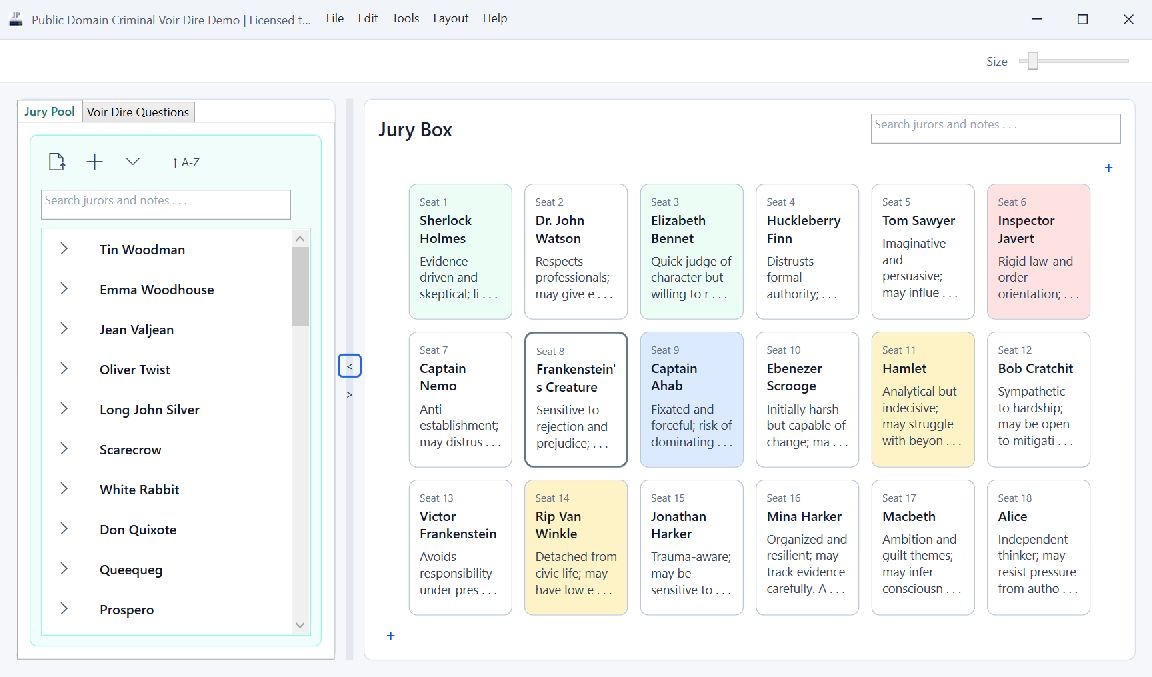
Jury Pro showing the jury pool and a fully populated jury box
One working viewPool, jury box, notes, and visual flags stay connected.
Real product, real workflowEvery guide uses the same screens you will use in court.
Start with the workflow

Become courtroom-ready in four short sessions.

This is the path we recommend for a first-time user. Each session ends with something useful already set up in Jury Pro.

01

Set up the matter

Create, name, save, and understand what autosave protects.

5-minute guide
02

Bring in the panel

Import questionnaire files, review detected jurors, and choose the fields you need.

8-minute guide
03

Match the courtroom

Build the jury box, change the layout, and reseat jurors without losing context.

6-minute guide
04

Practice at speed

Select questions, record responses, add notes, and find the right person quickly.

7-minute guide
Video guides

See the workflow before you try it.

Start with the short product overview. Focused lessons will follow as the Microsoft Store release and training library are finalized.

Product overview

Jury Pro in one working view

See how the Jury Pool, jury box, questions, notes, and response marks work together during jury selection.

In production

Install and license Jury Pro

Install the app from Microsoft Store, import the website license file, and confirm offline access.

In production

Import a questionnaire packet

Choose a file, review detected jurors, exclude fields, and complete the import.

In production

Work in Voir Dire Mode

Select the active question and record answers without losing pace.

In production

Save, recover, and print

Protect the project, recover recent work, and prepare courtroom copies.

Learn by courtroom moment

Choose where you are in the day.

Training should feel like the work itself. These views connect a courtroom situation to the exact Jury Pro tools that help.

Before the panel enters

Turn the court’s files into a usable working panel.

Import the questionnaire packet, verify the names and fields, arrange the jury box, and save the project with the matter.
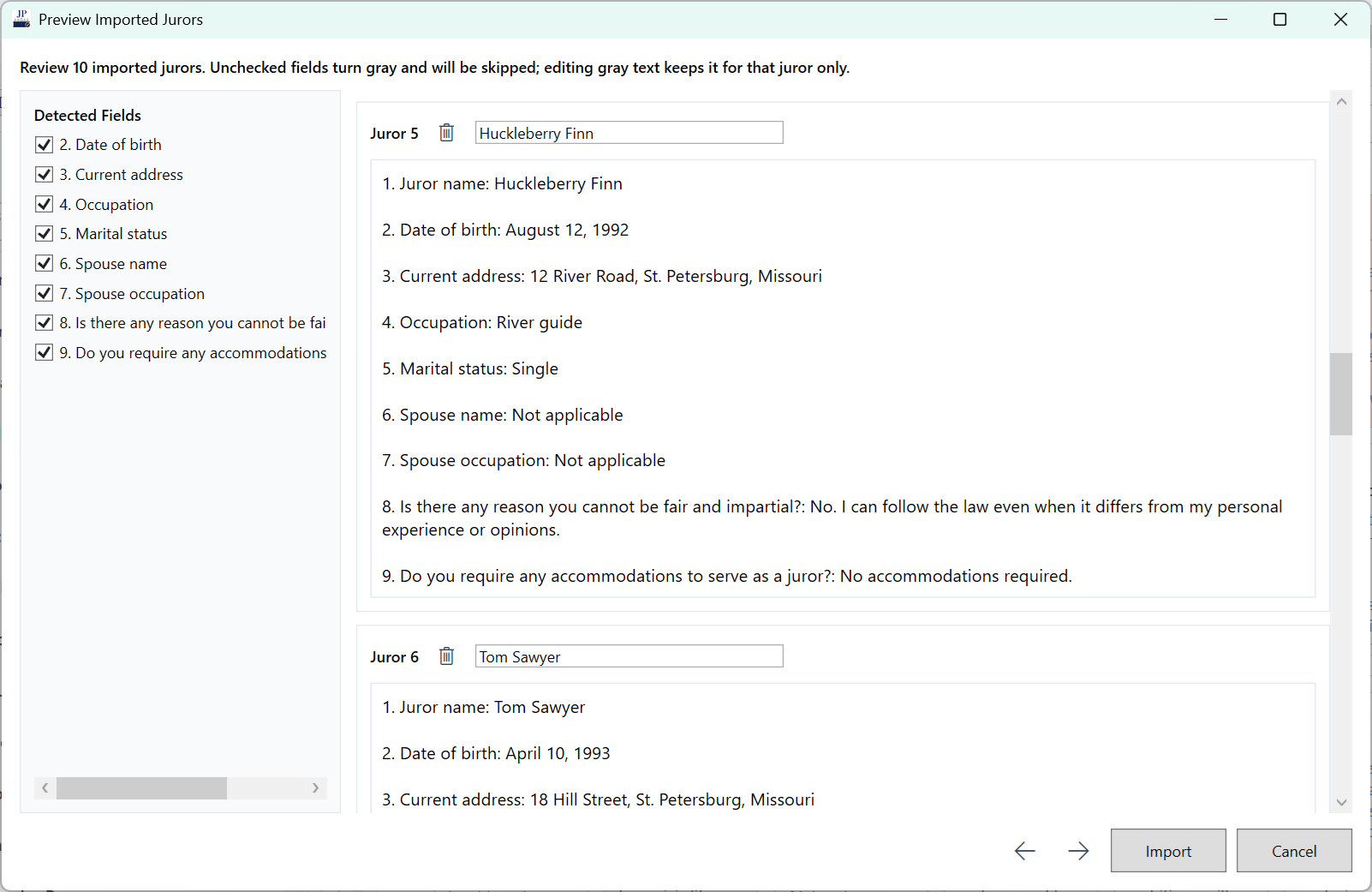
  • Review before anything enters the project
  • Exclude questionnaire fields you do not need
  • Set the layout to match the courtroom
Jury Pro import preview showing jurors and detected questionnaire fields
While answers are coming

Keep the active question and the jury box in the same line of sight.

Voir Dire Mode puts quick response controls on each juror card while preserving the question that produced the answer.
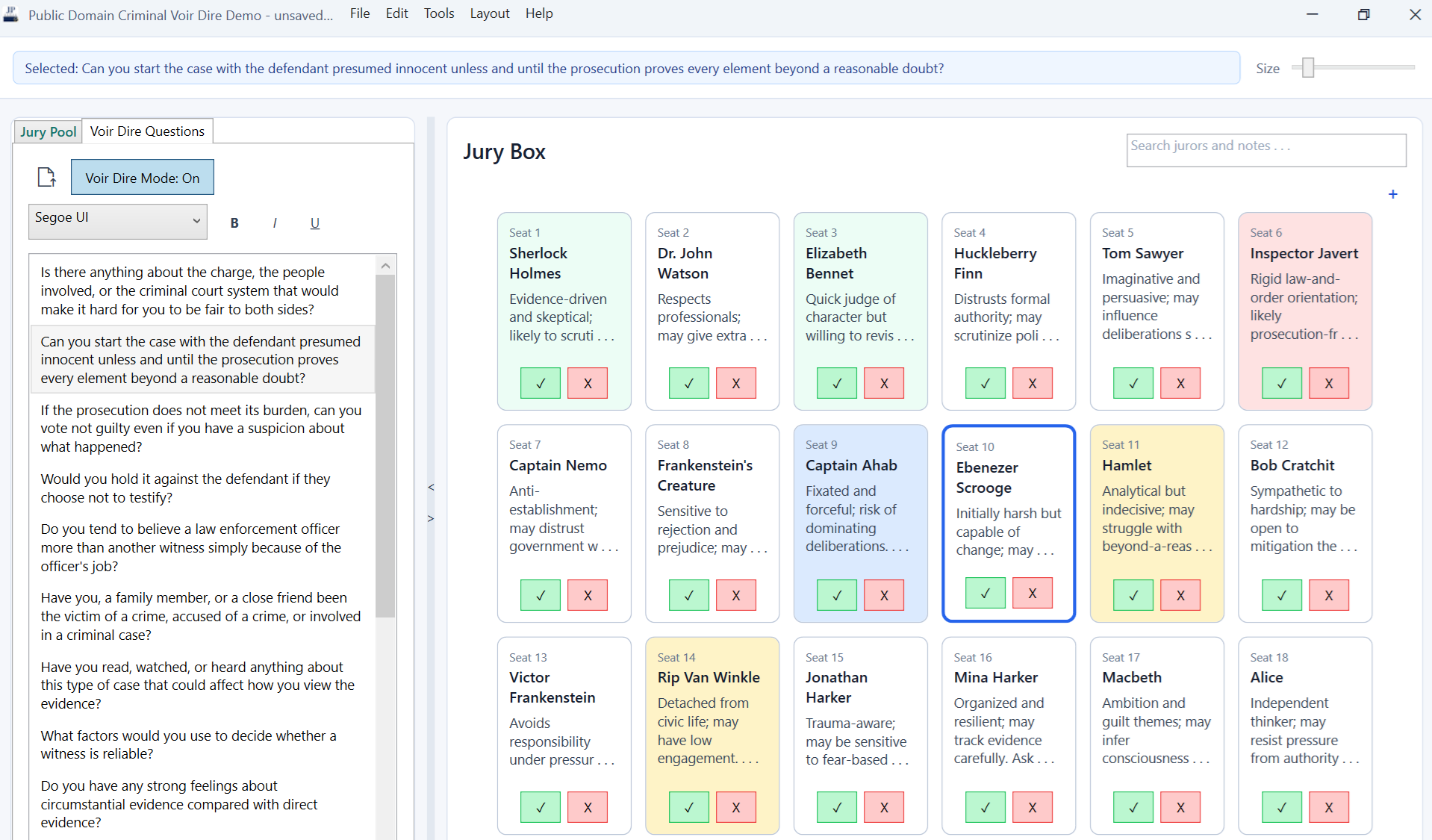
  • Change the active question as questioning moves
  • Use response marks for speed
  • Add a full note when the answer needs context
Jury Pro Voir Dire Mode with an active question and response controls
When strikes are approaching

Bring the remembered detail back into view.

Search across names and notes, compare the people in the box, and print the working material you need for the next conversation.
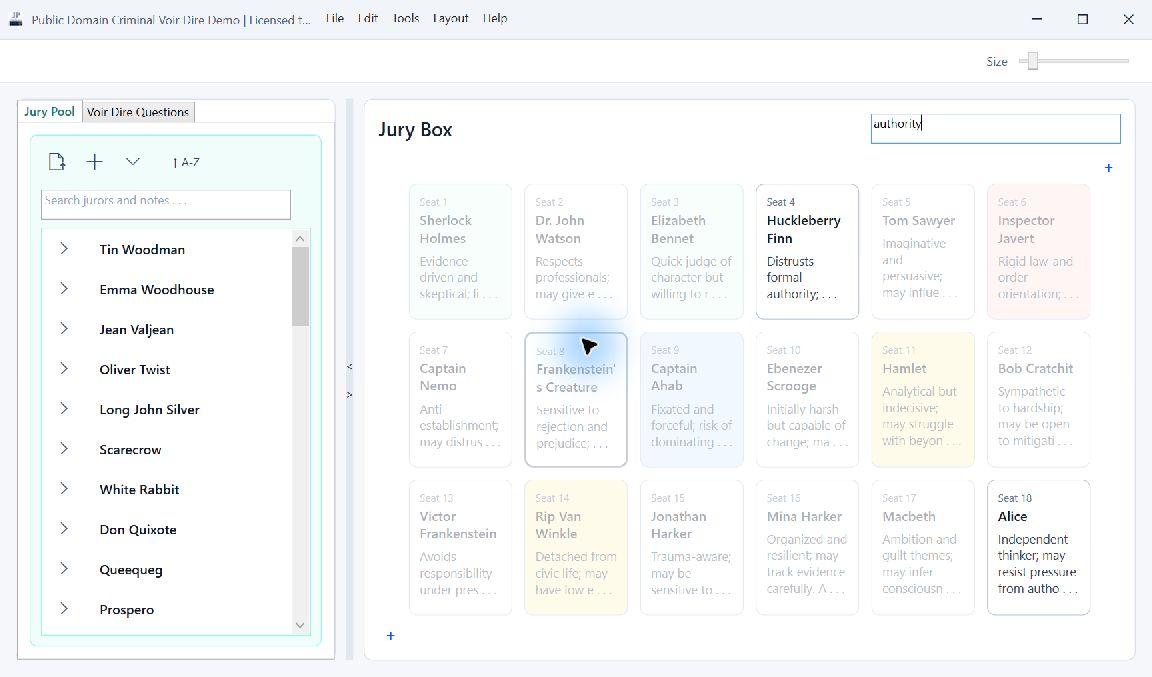
  • Search the jury box without moving anyone
  • Use colors as visual flags, not as a substitute for reasons
  • Print the seating chart in landscape
Jury Pro highlighting jurors whose notes match a search for authority
Visual guide

From questionnaire packet to an editable juror list.

Jury Pro reads the structure of the file, finds prospective jurors, identifies questionnaire fields, and pauses for review before importing anything.

1

Choose a Word document, PDF, or supported text file.

2

Review detected jurors and correct unusual names or responses.

3

Clear a field once to exclude it across the packet, then import.
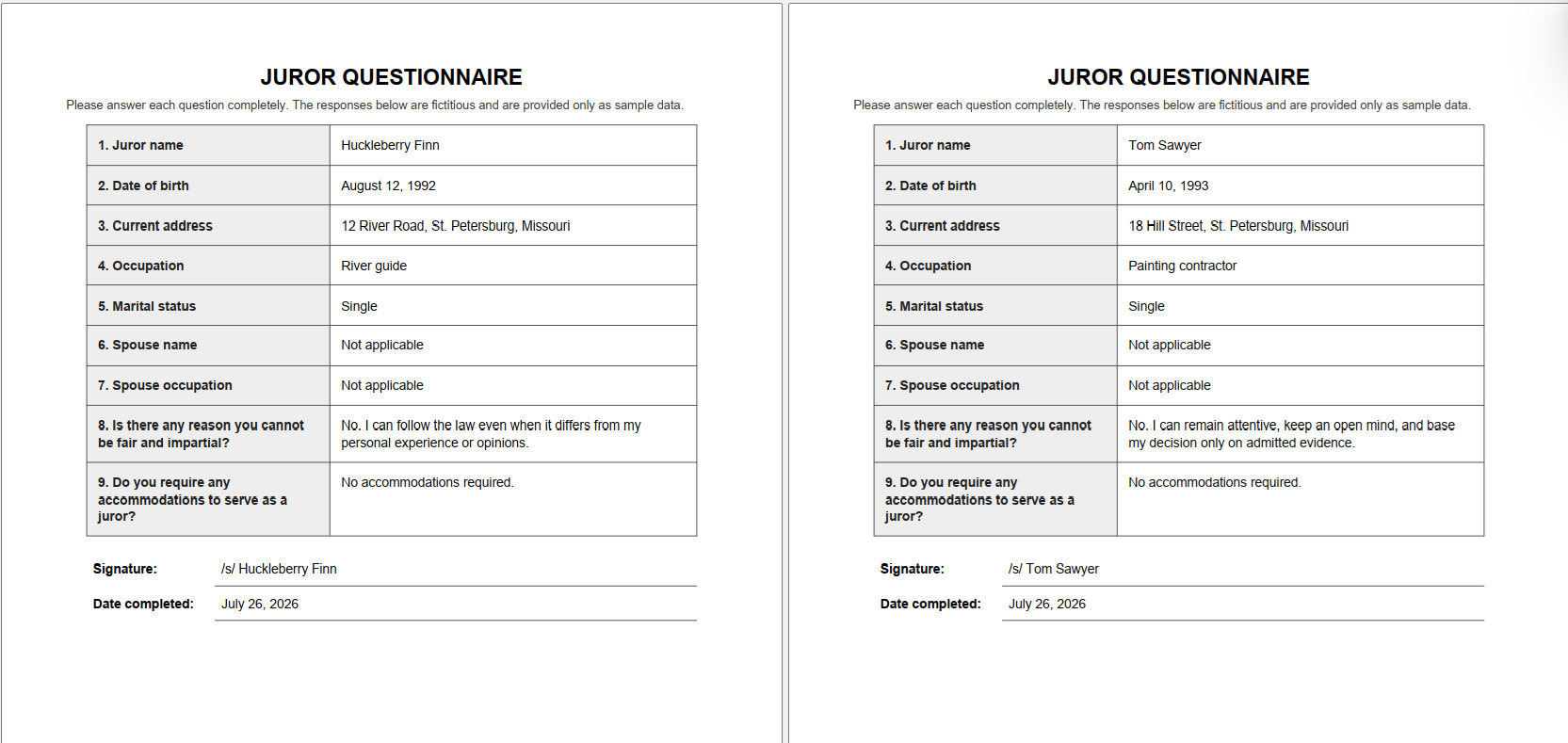
Two completed juror questionnaires
→
Jury Pro import preview
Annotated screen

Fast marks that still preserve the question behind them.

The green check and red X are useful because they are attached to the selected question. Later, the notes view can show what the juror responded to, rather than leaving a mark without context.

A

The active question remains visible across the top.

B

Response controls appear on every seated juror.

C

Normal notes remain available when an answer needs more detail.

Jury Pro Voir Dire Mode
A · Active question
B · Record responses in place
Notes that remain useful

Capture the observation, then find it when it matters.

Juror notes support color, readable formatting, and search. The point is not to create more data. It is to preserve the reason you noticed someone and bring that reason back quickly.

1

Use color as a quick visual flag in the box.

2

Keep fuller observations in searchable notes.

3

Add one note to several jurors when the same answer applies.
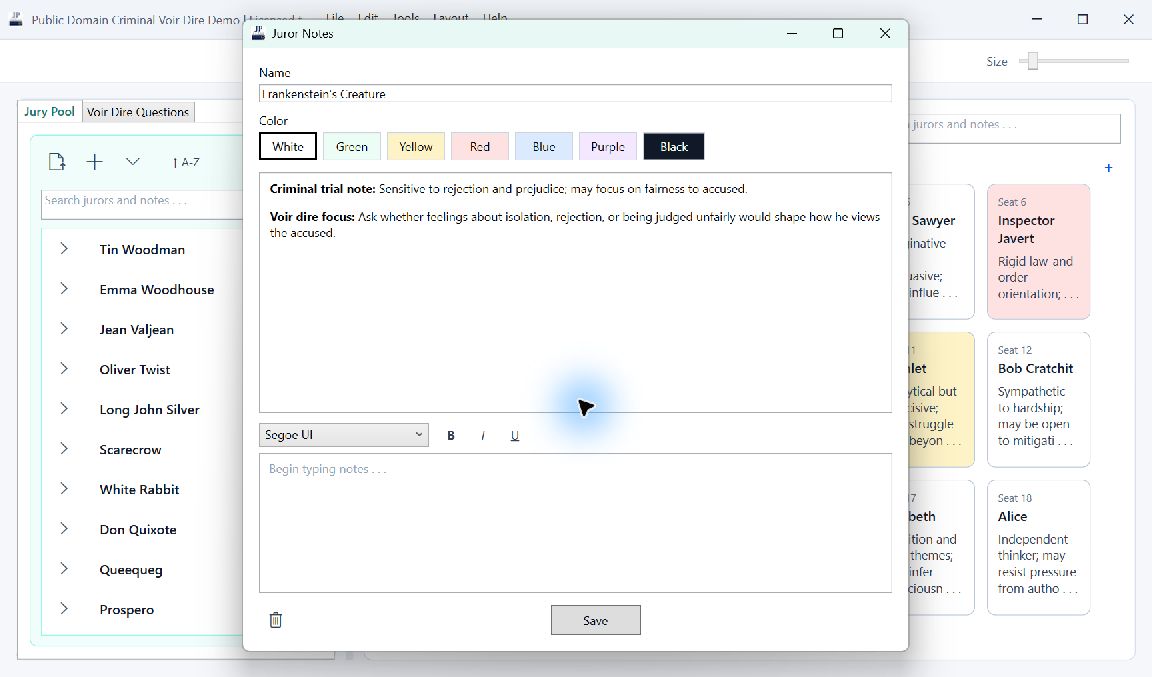
Jury Pro juror notes window with color and formatting controls
Notes wrap, format, and stay searchable
Common Courtroom Scenarios

See pressure points become manageable workflows.

These are not assignments. They are familiar moments, shown from the first sign of trouble through the way Jury Pro helps you keep the room, the record, and your next decision in view.

01
During questioning

Six jurors raise their hands at once

One question produces several responses, and the room is already ready to move on. Writing six separate notes can cost the pace and the context.

The pressureLoose editorial cartoon of six jurors raising their hands while the lawyer reacts to the rush of responses
How Jury Pro helpsActual Jury Pro Voir Dire Mode showing the active question and response controls on juror cards
Actual Jury Pro screen: active question and response controls stay together
Back in controlLoose editorial cartoon of the lawyer calmly using her laptop after recording the shared response
1
Keep the question in view

Voir Dire Mode preserves the active question while you record who responded.

2
Record the shared point once

Mark responses quickly, then add one group note to the selected jurors when they share the same context.

3
Keep moving without losing detail

Every response remains connected to the right people, leaving room for individual follow-up notes where they matter.

See the voir dire workflow
02
When the room changes

Jurors change seats quickly

Several jurors stand and switch places at once. A paper chart becomes outdated before the room settles, but every observation about those people still matters.
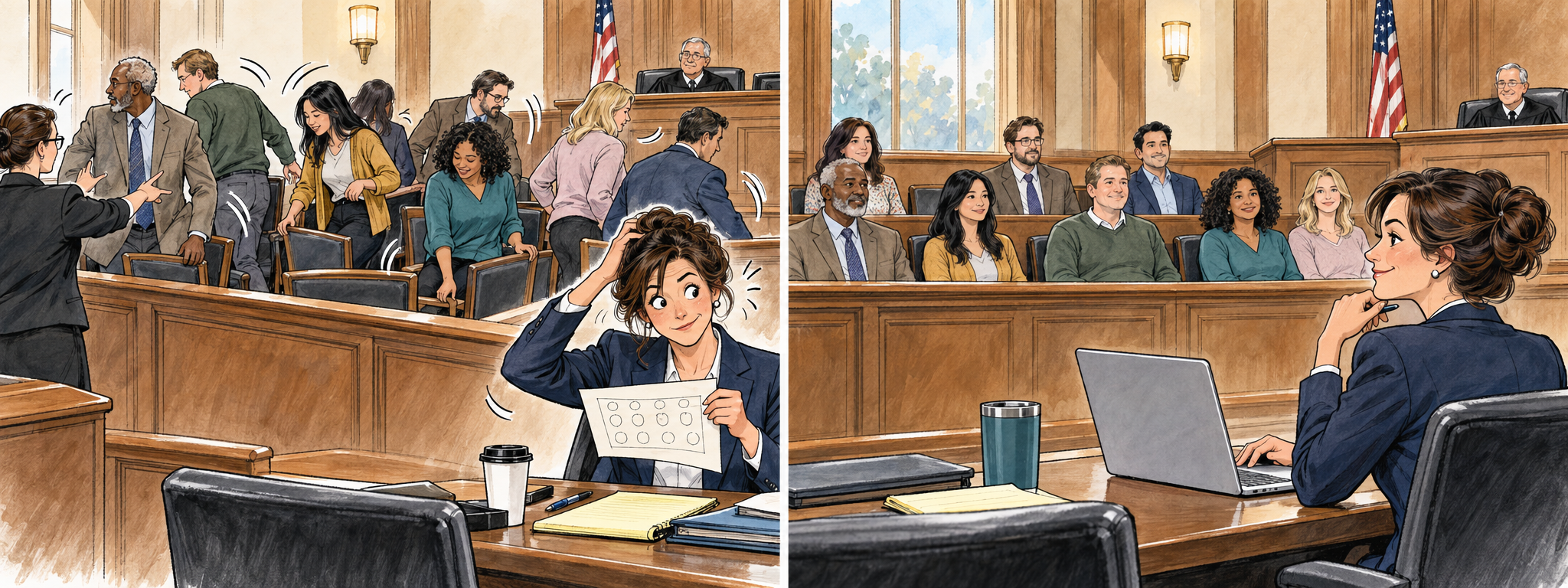
The pressureLoose editorial cartoon of jurors actively changing seats while the lawyer's paper chart becomes outdated
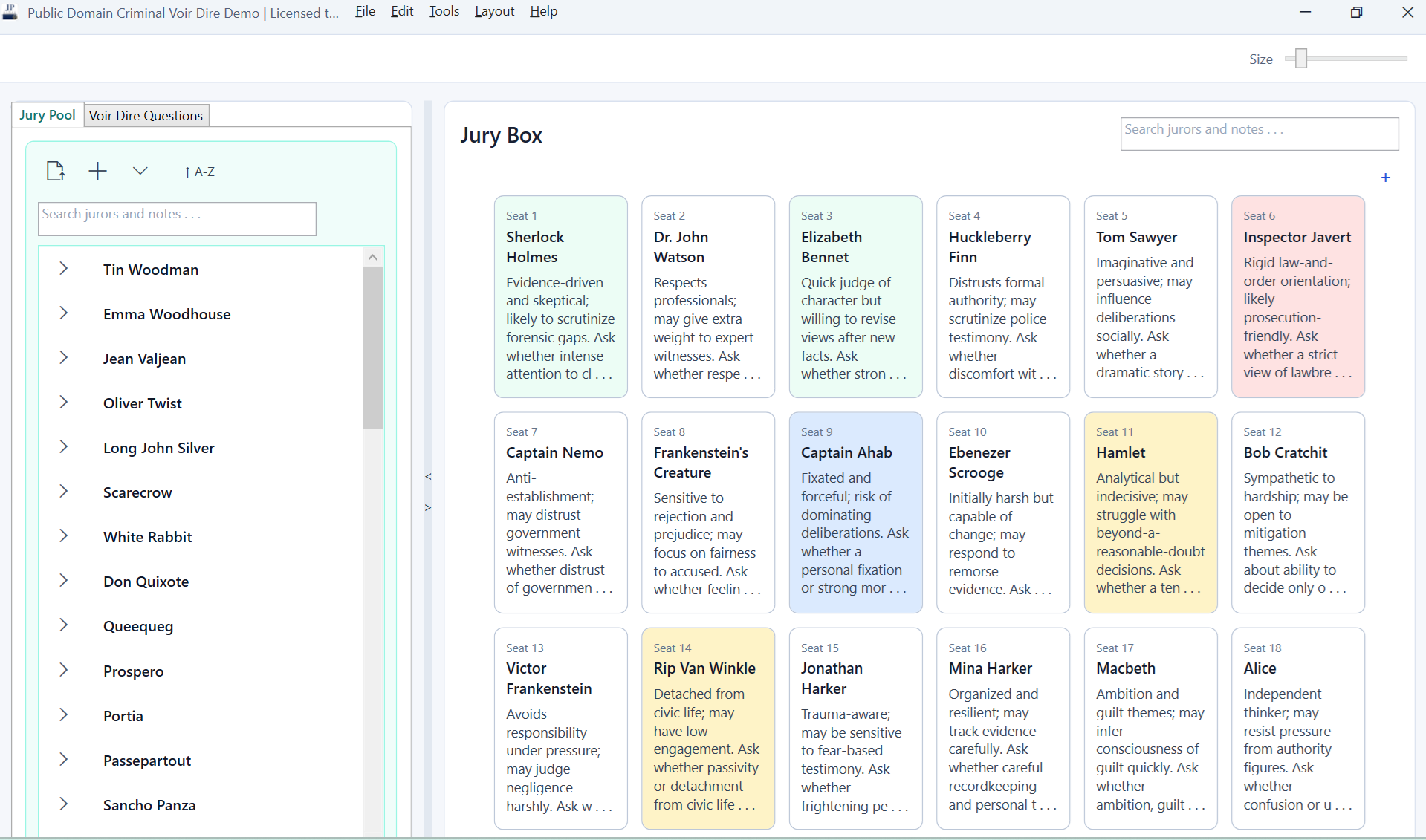
How Jury Pro helpsActual Jury Pro jury box with seated juror cards, notes, and colors
→→
Drag and drop jurors between seats or into and out of the jury box without losing their data.
Back in controlLoose editorial cartoon of the lawyer calmly using her laptop while the jurors settle into their new seats
1
Drag jurors to match the room

Move a person from one seat to another as the courtroom changes.

2
Move people in or out of the box

Drag jurors between the jury pool and jury box without rebuilding their records.

3
Keep every detail attached

Names, notes, colors, and recorded responses travel with each juror.

See the courtroom layout workflow
03
Before the panel arrives

The questionnaire packet arrives

A packet may contain pages of repeated prompts, answers, headers, and formatting. The useful information is there, but it is not yet organized for courtroom work.

The pressureLoose editorial cartoon of a lawyer in her office, comedically flustered by a modest stack of paper questionnaires
How Jury Pro helpsActual Jury Pro import preview showing detected jurors and questionnaire fields
Actual Jury Pro screen: review jurors, responses, and fields before importing
Back in controlLoose editorial cartoon of the lawyer calmly using her laptop in court after importing the questionnaires
1
Let the document keep its structure

Jury Pro reads the file to identify prospective jurors and the data fields used in their questionnaires.

2
Review before importing

The preview lets you correct unusual names, inspect responses, and exclude fields you do not need.

3
Start with an editable panel

Only the information you chose enters the project, organized under the correct jurors and ready for review.

See the questionnaire import workflow
04
When decisions are due

A detail matters before strikes

You remember that someone discussed law enforcement or authority, but not which person said it or what the surrounding answer was.

The pressureLoose editorial cartoon of a lawyer urgently searching paper notes for a half-remembered juror detail
How Jury Pro helpsActual Jury Pro screen showing jurors and notes that match a search
Actual Jury Pro screen: search names and notes, then review matches in place
Back in controlLoose editorial cartoon of the lawyer calmly using her laptop after finding the relevant juror detail
1
Search the words you remember

Search across juror names and notes without rearranging the jury box or opening records one by one.

2
Review each match in place

Matching people and notes come into view while their seats and other context remain visible.

3
Decide with the whole answer

Return to the full panel after reviewing the relevant records, with the remembered detail restored to its context.

See search and decision support
Step-by-step help

Fix the problem and get back to the case.

These guides cover setup, file imports, recovery, and moving your work. You can also find them from the search box at the top of this page.

Install Jury Pro and add your license

Use the trial first or install a purchased license before court. License verification happens on the computer and does not require a continuing internet connection.

  1. Open the Jury Pro listing in Microsoft Store and choose Install. The installation includes the 14-day trial and receives app updates through the Store.
  2. Open Jury Pro. Choose Tools > License, then select Import License File.
  3. Choose the .juryprolicense file delivered by email or downloaded from your Jury Pro account.
  4. Confirm that the License screen shows the correct customer, license type, and license ID.

Jury Pro keeps its own installed copy. Keep the original file with your purchase records so you can reinstall it on another permitted computer.

Import questionnaire PDFs with fewer surprises

PDFs with selectable text usually import fastest. Jury Pro can use Windows OCR for scanned pages, but scan quality still affects names and answers.

  1. Start the juror import and choose the questionnaire PDF.
  2. Let the progress window finish examining text, layout, OCR, juror boundaries, and fields.
  3. Compare every detected name with the source. Names determine where one juror ends and the next begins.
  4. Clear fields you do not need, correct the preview, and import only after the records look right.

For difficult scans, create a searchable OCR copy first when possible. Treat OCR as a starting point and compare important information with the original questionnaire.

Recover work from autosave

Autosave protects recent work after an unexpected close. It supplements the named project file and does not replace ordinary saving.

  1. Open the title-bar menu and choose Load Autosave Data when that command is available.
  2. Inspect the recovered jurors, questions, notes, and seating arrangement.
  3. Press Ctrl+S or choose File > Save Project to create a regular project file.
  4. Look in the adjacent Jury Pro Backups folder if you need an earlier saved version.

Windows protects autosave for the user who created it. Move regular project files and their backup folder when transferring work to another computer.

Move Jury Pro to another computer

Move the application, license, and project as separate items. A project file does not carry the installed license with it.

  1. Install Jury Pro from Microsoft Store on the destination computer.
  2. Copy the regular .jurypro project and its Jury Pro Backups folder through your office’s approved secure method.
  3. Import the original license through Tools > License, subject to the license terms.
  4. Open the transferred project and confirm its jurors, questions, notes, and seating chart before court.

Autosave files are tied to the original Windows user. Use a named project file for transfers, and consider password protection before copying confidential case material.

Resolve a license signature error

A signature error means this Jury Pro build could not verify that the file came from the trusted Jury Pro signing key. Work from the original file before changing anything else.

  1. Download the license again from your Jury Pro account or save a fresh copy of the original email attachment.
  2. Do not open and edit the license. Changes to the customer, email, dates, license type, user count, or other signed fields invalidate it.
  3. Confirm that you are running the current Jury Pro release, then try Tools > License > Import License File again.
  4. If it still fails, keep the rejected file and contact support with the order number and license ID. Never send or request a private signing key.

Changing the filename does not alter the signature, but the file should keep its .juryprolicense extension so Windows and Jury Pro recognize it.

Quick reference

The commands worth knowing before trial.

A one-page courtroom reference is more useful than another long manual. Print it, keep it with your trial materials, and use the fuller guides only when you need them.

Open one-page reference
Save projectCtrl + S
Open projectCtrl + O
New projectCtrl + N
Open Help CenterF1
Add a group noteCtrl + G
Undo project actionCtrl + Z
Redo project actionCtrl + Y
Bold note textCtrl + B
Italic note textCtrl + I
Underline note textCtrl + U
Clear trial selectionEsc
Move between panesTab
Quick answers

Questions users ask before they trust a courtroom tool.

Good support content also answers the questions that stand between a visitor and a confident trial download.

Will Jury Pro work without courtroom internet?

Yes. Core jury-selection functions and local license verification work offline after installation and license import.

Where do juror questionnaires and notes go?

Project files and autosave data remain on the Windows computer or in the location the user chooses. Jury Pro does not silently upload case data.

What questionnaire files can I import?

Jury Pro accepts Word documents, PDFs, text files, and related formats. Text-based or OCR PDFs usually import more reliably than image-only scans.

What happens after the 14-day trial?

Saving and autosave continue. Opening projects, loading autosave recovery data, and printing become available again after a license is installed.

Do I need a Jury Pro account to install the trial?

No. Install Jury Pro through Microsoft Store and start the 14-day trial. A Jury Pro website account is optional and helps you retrieve a purchased license file.

Are updates included?

Yes. Single and Enterprise Licenses include Jury Pro updates. Microsoft Store installs available updates; the license file purchased from jurypro.io continues to verify locally for offline use.

Ready to practice?

Try the workflow before your next trial.

The 14-day trial is enough time to import a sample packet, build a jury box, and run a complete practice session.

Download Jury ProStart the first guide
Go to Top
Jury Pro
Home Pricing Learn Sign In Download Privacy Policy Terms of Service Refund Policy

Offline jury selection software for trial lawyers.

Questions about Jury Pro?